You open the app expecting a nice generation graph, and all it says is “offline.” The panels are on the roof, the inverter is humming, the meter is running backwards, yet your phone knows nothing about it. Almost everyone who gets a Havells on-grid system goes through this at some point, and the good news is that it rarely takes more than a few minutes to sort out.
Monitoring is the part that gets rushed on installation day, especially when the focus is on getting the system running and approved. We do solar panel installation in Lucknow and look after customers through our solar AMC services in Lucknow, so this is something we help people with all the time. What follows is the same routine we’d walk you through over the phone.
Get these ready first
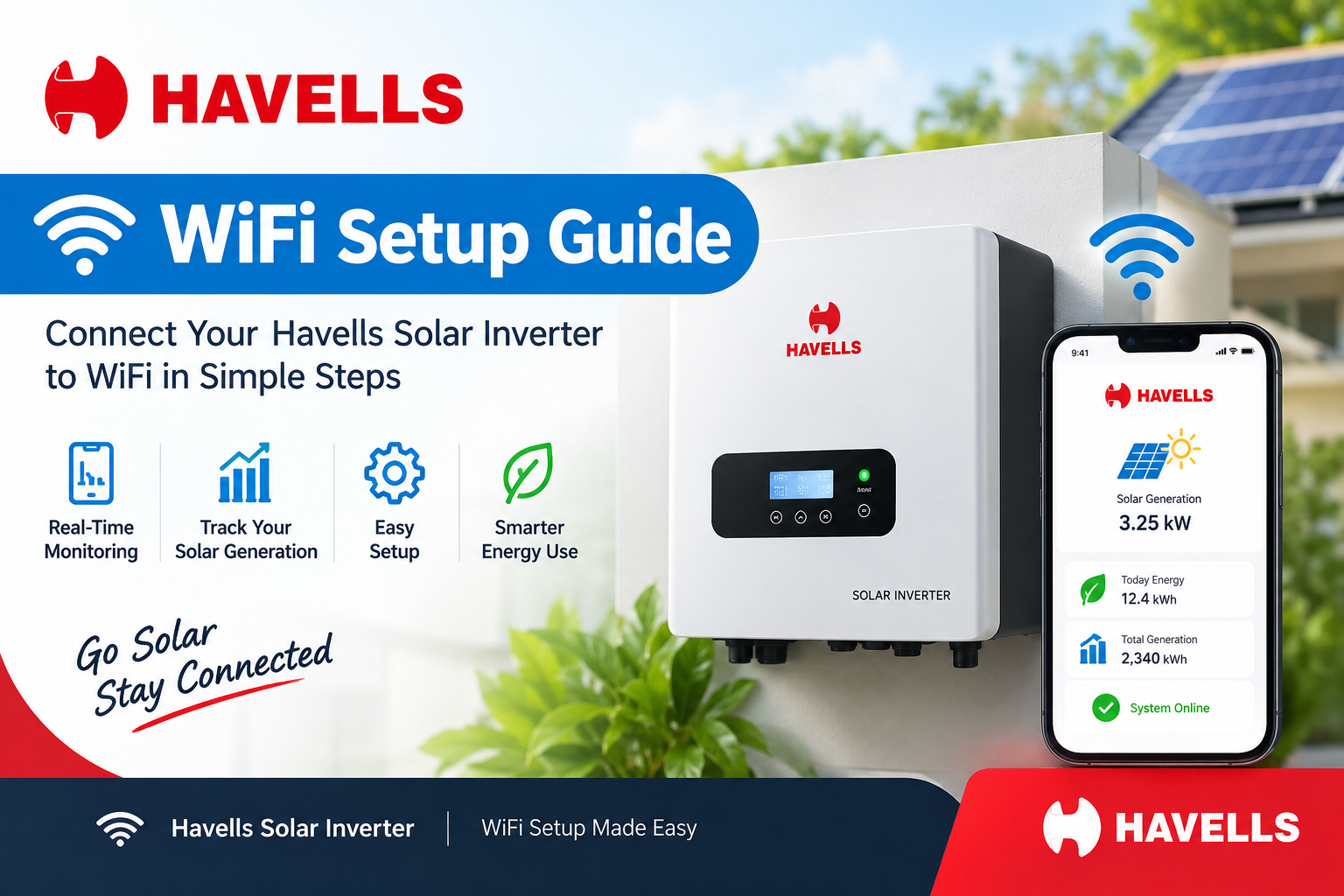
Make sure the inverter is on and the display looks normal. The small Wi-Fi stick should be pushed firmly into the inverter’s USB or COM port. Keep your home Wi-Fi name and password handy, and remember that the stick usually works only on a 2.4 GHz network. If your router is dual-band, that’s the first thing to check. You’ll also need the Havells monitoring app on your phone. Havells has a few apps, so check your inverter’s manual to confirm which one matches your model; for the Enviro Pro GTi range it’s the Havells Enviro Pro app.
Connecting, step by step
Start by looking at the stick itself. There’s a sticker with a serial number and a password, and it’s worth photographing it right now so you’re not squinting at it later. The lights on the stick tell you a lot: when the NET light goes steady, the stick has reached the internet.
Next, install the app and create an account. Once you’re in, add a new plant or device and scan the QR code on the stick, or type the serial number by hand.
Now comes the part people trip over. Go to your phone’s Wi-Fi settings and join the network that the stick itself broadcasts, using the password from the sticker. Switch back to the app, pick your home router from the list and type its password. Take your time with this, since it’s case-sensitive and one wrong letter is the most common reason for failure.
Give it two or three minutes. The stick restarts, the NET light settles, and your inverter should appear online with live numbers soon after. Screens and button names may look slightly different on your phone, so do check them against your own screenshots.
If it still won’t connect
Most failures come down to a handful of causes. The router may be on 5 GHz only, so switch on the 2.4 GHz band. The signal may be too weak at the inverter, which is usually mounted far from the router; moving the router closer or adding an extender fixes it. If the system worked before and went offline later, someone probably restarted the router or changed the password, so just repeat the Wi-Fi steps. If none of the lights on the stick come on, pull it out, push it back in firmly and restart the inverter.
One more thing that catches people out: if your phone is still on mobile data, it can quietly jump away from the stick’s network in the middle of setup. Turn mobile data off while you do this.
A few quick answers
Does the inverter stop working without Wi-Fi? No. It keeps generating and feeding power. You only lose the app view.
Why does the app show different units from my meter? The app can lag, or it may have been offline for a few hours. Trust the meter.
Can I add more than one inverter? Usually yes, each one as its own device.
Still stuck? Nature Grid Energy is based in Lucknow and works across Gomti Nagar, Indira Nagar, Alambagh and nearby areas. Call +91 97920 23123 or visit naturegridenergy.com and we’ll help you get it online.